
FileZilla
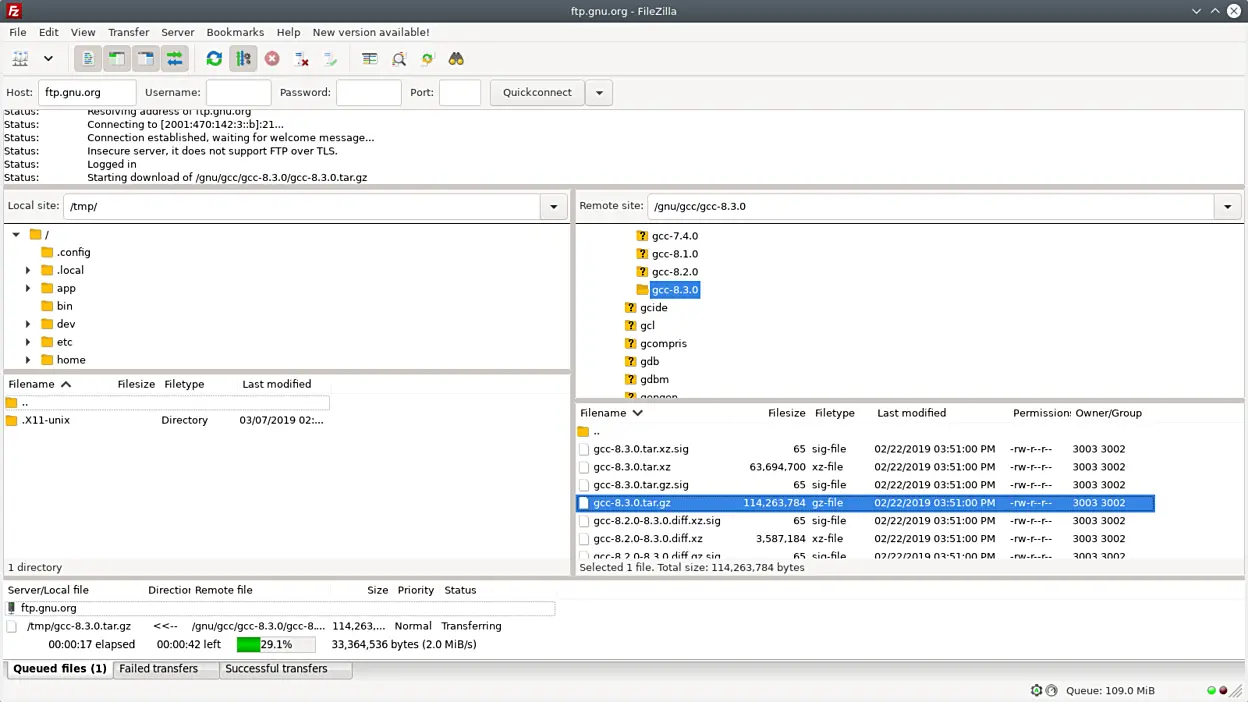
FileZilla is a free and reliable FTP/SFTP client used for transferring files between your Batocera system and remote servers. It features a dual-pane interface, drag-and-drop support, and bookmarks—making it a powerful tool for managing your Batocera filesystem or syncing content with other devices.
📥 Installation
Section titled “📥 Installation”FileZilla is available through the Batocera Unofficial Add-Ons (BUA) system:
- Open Batocera Unofficial Add-Ons from the Ports menu.
- Navigate to the System Utilities section.
- Select FileZilla and press Install.
- Once installed, FileZilla will appear in F1 → Applications.
🌐 How to Use
Section titled “🌐 How to Use”- Press F1 on your keyboard to open the Applications menu.
- Launch FileZilla from the list.
- Enter your remote server’s host, username, password, and port.
- Click Quickconnect to start transferring files.
- Drag files between local (left) and remote (right) panes.
You can use FileZilla to access your Batocera system from another PC as well by running an SSH/SFTP server on that system.
⚙️ Configuration
Section titled “⚙️ Configuration”- Connection Types: Supports FTP, FTPS, and SFTP.
- Transfer Queue: View, pause, and resume queued file transfers.
- Bookmarks: Save frequently used connections for quick access.
- Drag-and-Drop: Easily move files between devices or drives.
🛠️ Troubleshooting
Section titled “🛠️ Troubleshooting”| Issue | Solution |
|---|---|
| Cannot connect | Double-check your hostname, port, and login credentials. |
| Connection timeout | Ensure the server is online and accessible through your network. |
| Permission denied | Confirm your user has write access to the destination folder. |
| Interface glitchy | Restart the app or toggle fullscreen/windowed mode. |
FileZilla is a trusted open-source FTP client available on all major platforms.