Minecraft
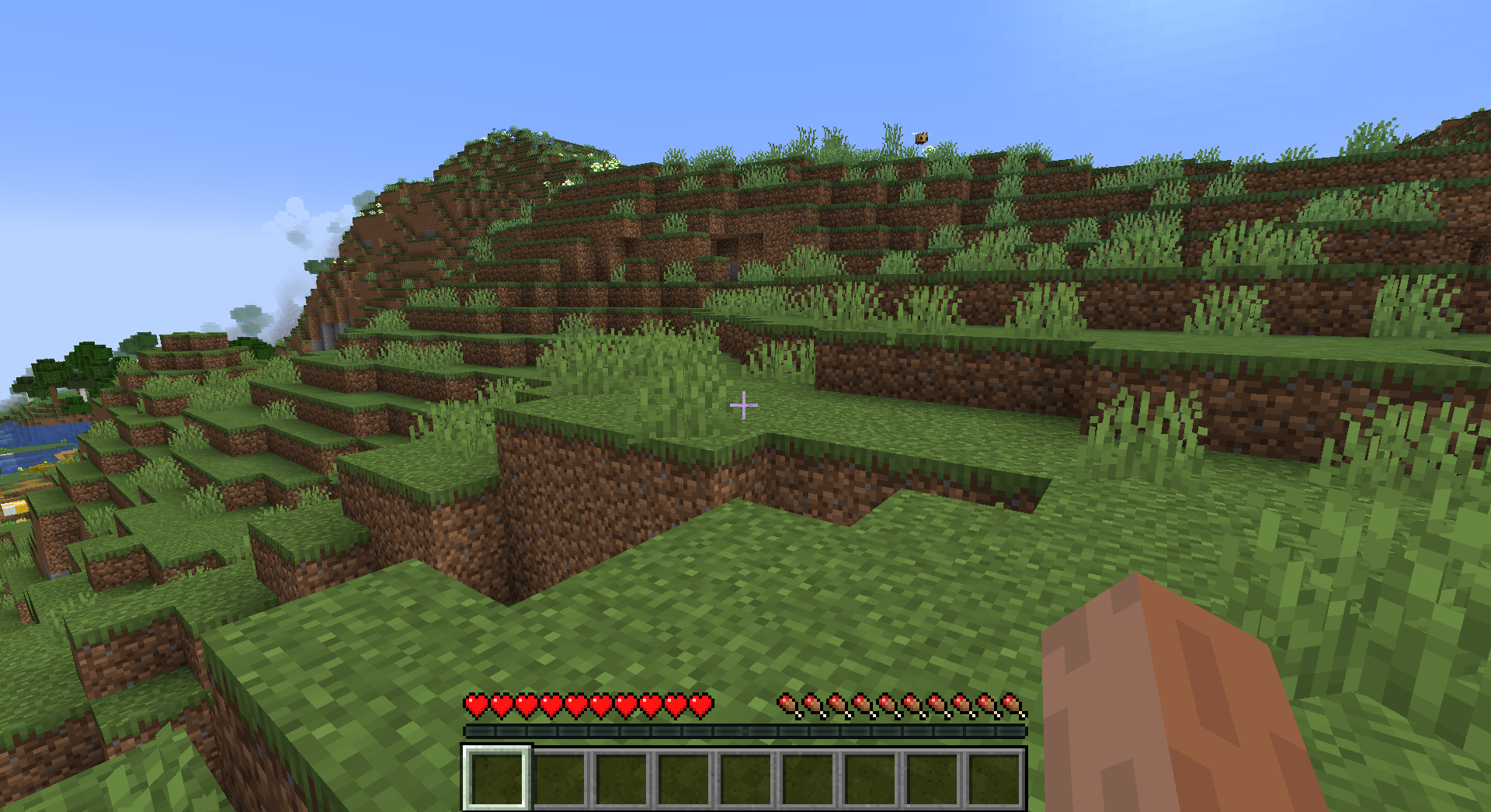
Minecraft is a sandbox survival and building game that allows players to explore, gather resources, craft items, and build structures in a block-based world. The game features both single-player and multiplayer modes with various gameplay styles, including survival, creative, and adventure modes.
📥 Installation
Section titled “📥 Installation”Minecraft can be installed via Batocera Unofficial Add-Ons (BUA). To install:
- Open Batocera Unofficial Add-Ons from the Ports menu.
- Browse the available add-ons and locate Minecraft.
- Select the version of Minecraft you want and wait for the installation to complete.
- Once installed, Minecraft will be available in your game list.
🎮 Available Versions
Section titled “🎮 Available Versions”The add-on includes multiple versions of Minecraft:
- Lunar Client – A custom client optimized for performance and PvP enhancements.
- Eaglercraft – A web-based version of Minecraft playable without installation.
- Java Edition – The original PC version with full modding and customization support.
- Bedrock Edition – Cross-platform version supporting consoles, mobile, and Windows 10/11.
🎮 How to Play
Section titled “🎮 How to Play”- After installation, navigate to the Ports section.
- Locate the installed version of Minecraft in the game list and launch it.
- Choose a game mode: Survival, Creative, or Adventure.
- Explore the world, gather resources, and build your creations.
⚙️ Configuration
Section titled “⚙️ Configuration”- Controls: Supports keyboard, mouse, and gamepad inputs.
- Graphics Settings: Adjust resolution, render distance, and visual effects.
- Multiplayer: Connect to online servers or set up a local LAN world.
- Mod Support: Install resource packs, shaders, and gameplay modifications (Java Edition only).
🛠️ Troubleshooting
Section titled “🛠️ Troubleshooting”| Issue | Solution |
|---|---|
| Game not launching | Re-run the installer. If issues persist, check the troubleshooting guide. |
| Lag or frame drops | Lower graphics settings or reduce render distance. |
| Multiplayer connection issues | Ensure your firewall allows Minecraft network traffic. |
| Mod issues | Verify mod compatibility and ensure they are placed in the correct directory (Java Edition only). |